Buy anything from 5,000+ international stores. One checkout price. No surprise fees. Join 2M+ shoppers on Desertcart.
Desertcart purchases this item on your behalf and handles shipping, customs, and support to India.
๐ค Own the room with the ultimate 3-in-1 presentation sidekick!
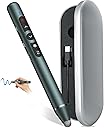
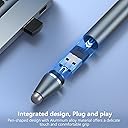
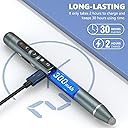
This 3-in-1 rechargeable wireless presenter combines a super bright red laser pointer, stylus pen, and slide advancer in a sleek metal design. Featuring a hidden magnetic USB receiver, 2.4GHz wireless tech with 30m range, and compatibility across Mac, Windows, Linux, and major presentation software, it offers plug-and-play convenience. The ergonomic pen includes a 200mAh rechargeable battery with over 30 days standby, making it perfect for professionals who demand reliability and style in every presentation.


| ASIN | B0C6LX7L85 |
| Additional Features | Digital Display, Rechargeable, Touch Screen Stylus Pen, metal material |
| Battery Type | Lithium |
| Best Sellers Rank | #310,425 in Office Products ( See Top 100 in Office Products ) #135 in Office Presentation Remotes |
| Brand | AXYBCOOL |
| Button Quantity | 5 |
| Color | grayish blue |
| Compatible Devices | MAC, Computer, Laptop |
| Connectivity Technology | Radio Frequency |
| Controller Type | Button Control, Touch Control |
| Customer Reviews | 4.4 out of 5 stars 77 Reviews |
| Manufacturer | Shenzhen Woqi Science & Technology Co., Ltd. |
| Max Number of Supported Devices | 1 |
| Maximum Number of Supported Devices | 1 |
| Maximum Range | 600 Feet |
| Mfr Part Number | Q203 |
| Model Name | Q203 |
| Model Number | Q203 |
| Number of Batteries | 1 AA batteries required. (included) |
| Special Feature | Digital Display, Rechargeable, Touch Screen Stylus Pen, metal material |
I**O
Nice and long lasting charge
Fast charge and versatile!
U**Z
Muy cรณmodo
Muy buen producto. Recomendaciรณn de rediseรฑo, alejar el botรณn del lรกser, del boton de adelantar o atrazar.
R**N
Loved it!
Why did you pick this product vs others?: Multifunctional
V**S
Really wanted to love this, butโฆ
Iโm just not a huge fan of it. It is somewhat heavy to hold, and for the cost Iโm just not pleased. I click the buttons when writing and the pen tip is too big for my preference. Will most likely return.
T**M
What a motor scooter.
Guys-Gals step your PRESENTATION up with this. Thank me later.
M**Z
Slender Pen-Style Presentation Clicker
I liked this presentation clicker a lot because it is smaller than most and fits nicely in your hand. It feels solid. It is pen-shaped, with four buttons and a red laser pointer. The laser pointer is bright. It also has a soft stylus at the other end. Two spare tips for the soft stylus are included. The USB A receiver is hidden inside the presentation clicker. You have to unscrew the soft stylus to get at it. It is held in place with a magnet. The receiver can be plugged into a hub or adapter; it doesn't need to be plugged directly into the laptop. I wish you could get at the receiver without needing to unscrew the stylus. I would have preferred easy access to the receiver over the soft stylus. This presentation clicker does not have Bluetooth as an option. The upward pointing button can be used to go to the previous slide (short press) or start or stop full screen mode (long press). The downward pointing button can be used to go to the next slide (short press) or start or stop blank screen (long press). The other buttons can be used to open hyperlinks or switch windows. The presentation clicker is recharged using the included USB C to USB A cable. It comes in a nice metal case. However, it was a little slippery, making it harder for my fingers to open the case.
D**K
Read the instructions and play with it before you use it
The presentation remote is packaged well and I like the storage case. Having extra tips is great, as well, as you don't often get extra tips with smart pens. I tried out the pen part on my touchscreen phone and it works flawlessly. I was not able to test it on a smartboard. I charged the remote for about 10 minutes so I could do my initial test. I was surprised and how much it charged (it arrived with no charge) in just that 5 minutes. After testing, I continued charging it and it took about 30 minutes of additional charging before the red indicator light turned off. The laser pointer is bright and strong (brighter than it appears in the picture). I like the USV being hidden inside the pen side of the presenter. The magnet in there is a clever, helpful addition so you're not shaking the receiver out of the tip. It goes back in just as easily as it comes out. The color of the presenter is a metallic blue/green. Unique and attractive choice. It is also matte, so it doesn't show fingerprints. I tested this using an HP laptop running Windows 10 and PowerPoint in Microsoft 365 (installed version). I plugged the USB receiver into my computer and it installed automatically as a mouse. After it self-installed, I turned on the presenter and it connected with no issues. All functions worked exactly as described in the manual. Starting the slideshow, blacking the screen, moving through slides, etc. The tricky function was the Hyperlink button. If you are presenting with multiple screen or with a projector and your PowerPoint is in Presenter Mode (the screen on your view shows your current slide, next slide, and notes for the slide and the other screen shows just the current slide), you have to be cautious which screen your presentation clicker is on. Press once and you will see it select something. If that something is box around the hyperlink (or whatever you're wanting to click on the screen), then you double-click quickly and it will click the selection. I got the selection to come up once, then didn't double-click fast enough and when I single-clicked to select it again, I was on the buttons on the Presenter Mode screen. Once I realized what had happened, I just single-clicked until I got back to the slide with the hyperlink and then was able to activate it. If you want to use the marking button to draw on your slides, make sure you're on the screen that only shows your slide. If you're on the Presenter screen, that button will bring up the Print function. I definitely recommend playing around with this presenter before you use it the first time. Once you understand the functions of how it works, it is very easy to use. I look forward to using this for years to come. FYI The bottom of this presenter is magnetic! Super handy, but be careful where you set it. I set it on top of my laptop and when I picked it up and it was sticking a bit, I was worried I might have messed up my computer. I didn't, but I will be more cautious in the future.
P**L
Excellent presentation clicker/stylus pen/laser pointer
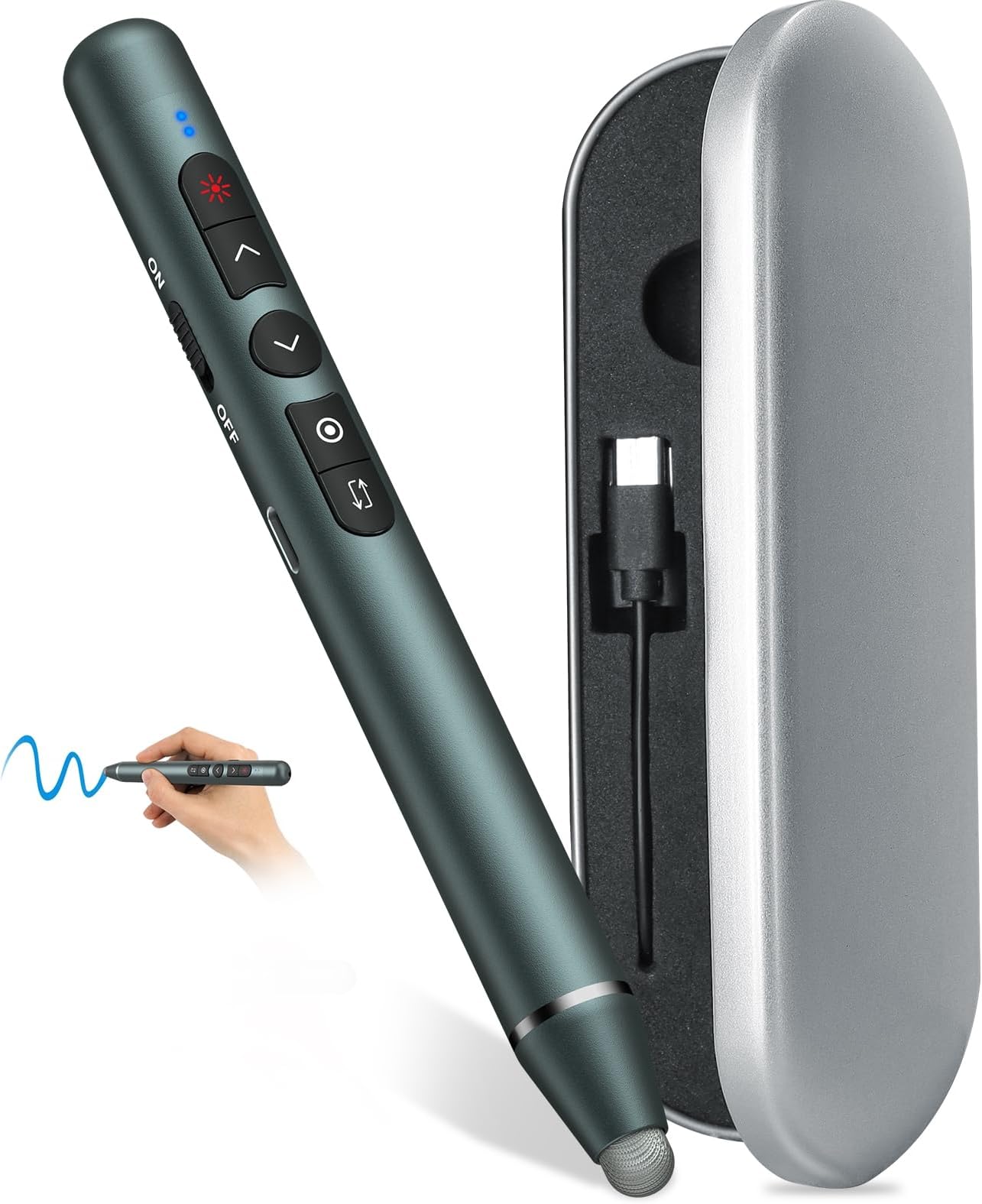
I use presentation clickers all the time to walk around and advance my PowerPoint presentations. Unfortunately, the clickers made available to me have incredibly weak laser pointers that are at times barely visible. So I opted to buy my own, and this seemed a good, reasonably priced alternative. My first impression of the product after about an hour of use is very positive. The clicker seems very solidly constructed, and works well beyond the 60+ feet or so from the computer I need to walk around large lecture rooms, and the laser is the brightest I have used to date. (As with any laser pointer, one must be careful not to point it in anyone' eyes as retina damage could possibly result.) I have not tried the stylus on a touch screen display yet, but I expect it should work s expected. I especially like the fact that the device comes with built-in rechargeable batteries (charging cable included that can be plugged into any USB A computer port or standard phone 5-volt charger that accepts a standard USB A male plug.) A USB A dongle is included inside the pen-like device and is accessed by unscrewing the stylus nib. That is a nice feature as it is easy to lose these dongles and I'm not sure how easy they are to replace if lost. (The dongle needs to be attached to a USB A port on the computer hosting the presentation, drawing or other software.) To use the dongle on a computer or laptop that only has a USB C interface, a separate adapter or dongle will be required. If needed, these are readily available on Amazon and elsewhere (i.e., a USB A to USB C adapter.) the device was automatically recognized once the dongle was attached to my MacBook Pro and MacBook Air laptops. I did not try it on any of my Windows PCs or laptops but expect the same would be true as it supports both OSX and Windows operating systems. The device comes in a nice storage case pictured above atop my MacBook Air. A regular pen is also shown above just for purposes of showing the relative size of the device.
Trustpilot
1 week ago
1 week ago